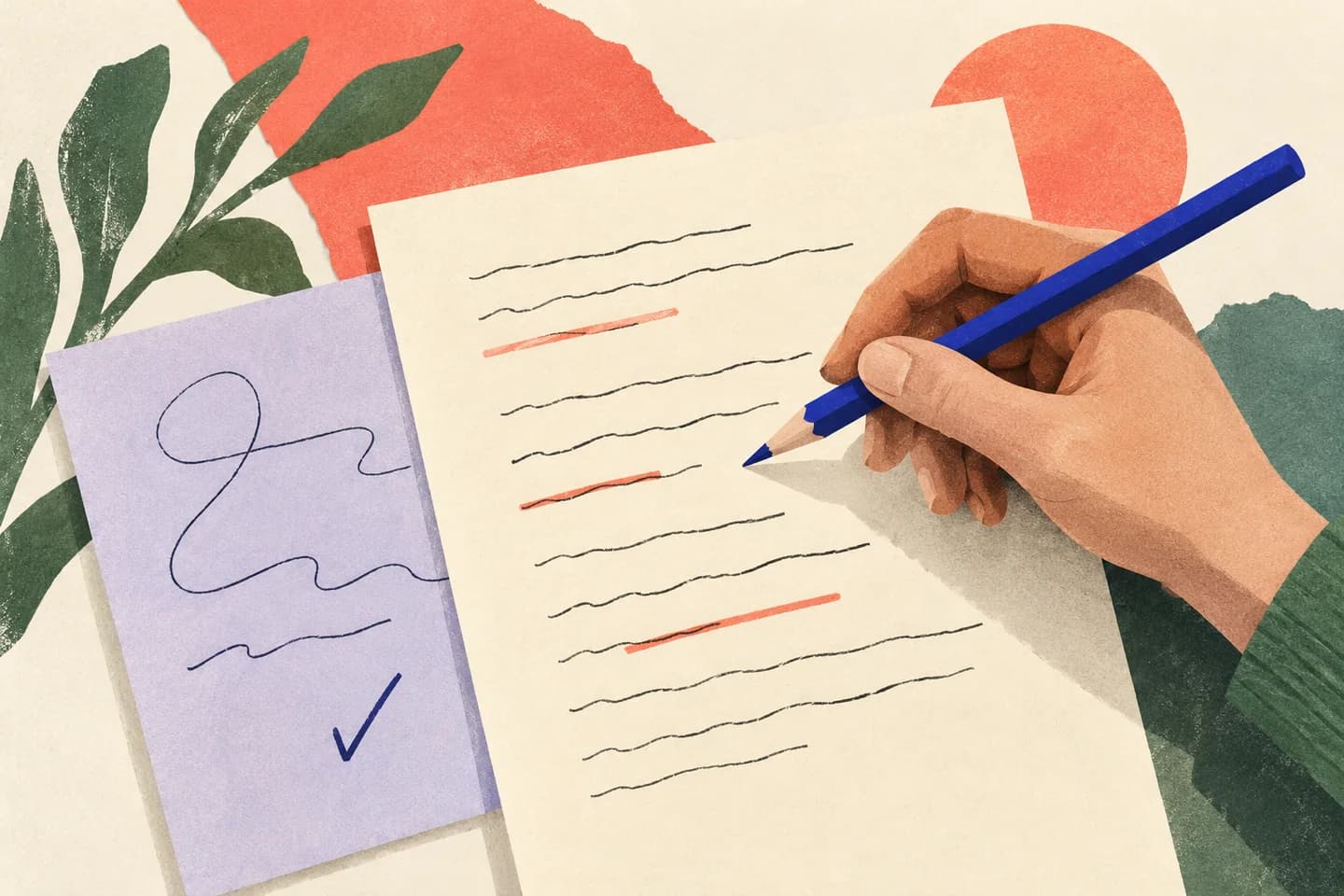
An email can be difficult to improve precisely because its details matter: a client’s name, a private attachment, a payment commitment, or a sensitive date. If you should not share that material with an AI assistant, do not paste the message and hope that removing a name makes it safe. Instead, prepare a short checklist on your own device or on paper, ask for help with that checklist alone, then compare any suggestions with the original. This keeps the review focused on writing choices while leaving confidential facts under your control.
The useful bits
- Keep the original email and sensitive details out of the assistant’s prompt.
- Describe the review goal using generic labels and only the facts needed.
- Check every proposed change against the original before sending.
Decide what must stay private
Before reviewing, identify the material you are not permitted or willing to share. That may include the message itself, names, email addresses, account details, contract terms, medical information, attachments, or even the fact that a particular person is involved. Follow any workplace or client rules that apply; a checklist is not a way to bypass them.
If the rules prohibit sharing any information about the message, do not submit a related checklist either. You can still use a general review checklist without describing the specific situation. Avoid copying subject lines, quoted replies, file names, or distinctive phrases: small details can identify a conversation even when names are removed.
Prepare a checklist without copying the email
Work locally—in a permitted document, a private note, or on paper—and turn your review need into generic criteria. Describe the type of writing help you want, not the confidential story. For example, ask whether a short business email has a clear request, a neutral tone, and an explicit next step. You can specify constraints such as “do not add facts” or “preserve the existing commitment.”
Use role labels only when they are genuinely useful, such as “sender” and “recipient.” Leave out real names, organizations, dates, amounts, locations, and unique circumstances. Do not include the original wording as a supposedly harmless sample. If a detail is essential to checking accuracy, keep it for your own comparison rather than giving it to the assistant.
Ask for help on the checklist alone
Keep the request narrow. An assistant can comment on general criteria or help make a checklist clearer, but without the email it cannot reliably judge whether the actual message is accurate, complete, or appropriate. Make that limitation explicit so the response is not mistaken for a review of material it has never seen.
A useful prompt might ask for a neutral tone check framework, a way to make a request more direct, or questions to ask before sending. Do not include real passwords or one-time codes; never provide them to an assistant. If you are using a product with optional AI assistance, use it only when available for your account and permitted by your organization’s rules, and provide only information you are allowed to share.
Example: review a confidential scheduling email
Suppose an email concerns a private client meeting and includes a confidential project name and a date. Rather than submitting the email with those details removed, make a generic checklist locally. Ask for help improving the checklist or applying it to a fictional, generic example—not for a judgment about the unseen message. Then do the actual review yourself using the original.
For instance, the checklist could ask whether the message states its purpose, identifies the requested action, uses a professional tone, and avoids implying a commitment that was not approved. The assistant can help clarify what those checks mean. It cannot confirm whether the real date is correct or whether the message matches the client agreement.
Local checklist (do not paste the original email):
- Is the purpose clear in the first few lines?
- Is the requested action explicit?
- Is the tone professional and appropriate?
- Does the wording avoid adding or changing commitments?
- Are names, dates, recipients, and amounts correct? (Verify privately against the original.)
Verify suggestions against the original
Treat any advice as a suggestion, not an edit to apply automatically. Open the original message and check each proposed wording change in context. Confirm that it preserves the intended meaning, does not introduce a new promise, and does not remove a qualification or condition. Review names, dates, recipients, attachments, and financial information directly; an assistant working from a generic checklist cannot validate those facts.
If you revise the message, compare the final draft with the original before sending. Pay particular attention to changes that sound more definite, such as turning “may” into “will,” or replacing a request for confirmation with a statement that something is agreed. When a factual or policy question cannot be resolved from your authorized records, pause and ask an appropriate person through an approved channel.
Confirm the workflow worked
A privacy-safe review should leave the sensitive email and identifying details out of the assistant’s input, while still helping you make a deliberate local check. Before sending, confirm that the recipient and attachments are intended, the important facts match the source you are authorized to consult, and the final wording reflects only approved commitments. If you cannot check a detail without sharing prohibited information, do not guess or treat generic feedback as confirmation; use your organization’s approved review process instead.
About this guide
Prepared with AI assistance for the BITTU Mail editorial library. Check important details against your original messages and current account settings. Product access depends on your role, plan and provisioning state. Provider interfaces and requirements can change.
View current plans · Security information · Suggest a correction