When storage feels tight, it is tempting to delete a large batch of messages and hope for the best. A safer first step is to inspect Trash and Spam separately: both can contain items you still need, and the amount of storage they use may not be obvious. Review messages before acting, remove only what you are comfortable losing, and then check the account’s storage information again. This guide explains a careful sequence and what to verify if you are considering a plan change.
The useful bits
- Review Trash and Spam separately; do not assume either folder is safe to empty.
- Keep messages you may need, and act on unwanted items using the available folder controls.
- Confirm storage and any plan change in your authenticated account rather than assuming a change took effect.
Start with a clear before-and-after check
Before deleting anything, note the storage information currently shown in your account, if available. This gives you a reference point, but it does not guarantee that removing messages will produce a particular change. Storage accounting and updates depend on the account’s displayed information and service behavior.
Open BITTU Mail through the account service at mail.bittuicloud.com. BITTU Mail is powered by BITTU ICLOUD; use the account’s own controls to review mail and account details. Do not share your password or a one-time code with anyone while doing this.
Inspect Trash on its own
Open the Trash folder and scan the messages before taking action. Look for recent conversations, receipts, attachments, or messages that might still be needed. Search can help narrow down a folder, but verify the sender, subject, date, and message content before deciding.
If you find something to retain, use the available mail controls to move or otherwise restore it if that option is offered. For messages you recognize as unwanted and no longer need, use the controls shown in your account. Read any confirmation prompt carefully; do not assume that deleting a message from Trash has the same effect as moving it there.
Treat Spam as a separate review
Next, inspect Spam independently. Automated filtering can place wanted mail there, so check for legitimate conversations, account notices, or messages you are expecting. If a message is wanted, use the available controls to mark or move it as appropriate, then confirm where it appears.
For clearly unwanted messages, follow the folder’s available deletion controls. Avoid selecting everything simply because the folder is named Spam. If you are uncertain about a sender or message, leave it in place while you verify it through a trusted channel.
Make a small, deliberate cleanup
A focused review is easier to verify than a broad deletion. Work through one folder at a time, and choose a manageable group of messages only when you can identify them. Keep a message if you may need its contents, attachments, or a record of the conversation. Do not open suspicious attachments just to decide whether a message is unwanted.
Use this short checklist before confirming an action:
- Am I in the intended folder: Trash or Spam?
- Have I checked the sender, subject, date, and any important attachment or conversation?
- Do I understand the action shown in the confirmation prompt?
- Can I verify the result by checking the folder and account storage information afterward?
Example: You are looking for a receipt sent to [you@example.com] by [shop@example.com]. If it appears in Spam, confirm that the sender and message are expected before moving it. If unrelated messages remain in Trash, review those separately rather than emptying both folders together.
Verify the outcome before changing plans
After cleanup, revisit the relevant folder and check whether the selected messages are still there or have moved as intended. Then return to the storage information available in your account and compare it with your earlier note. If the displayed amount has not changed, allow for the account’s update behavior and check again later; do not infer that a particular message action must immediately free a specific amount.
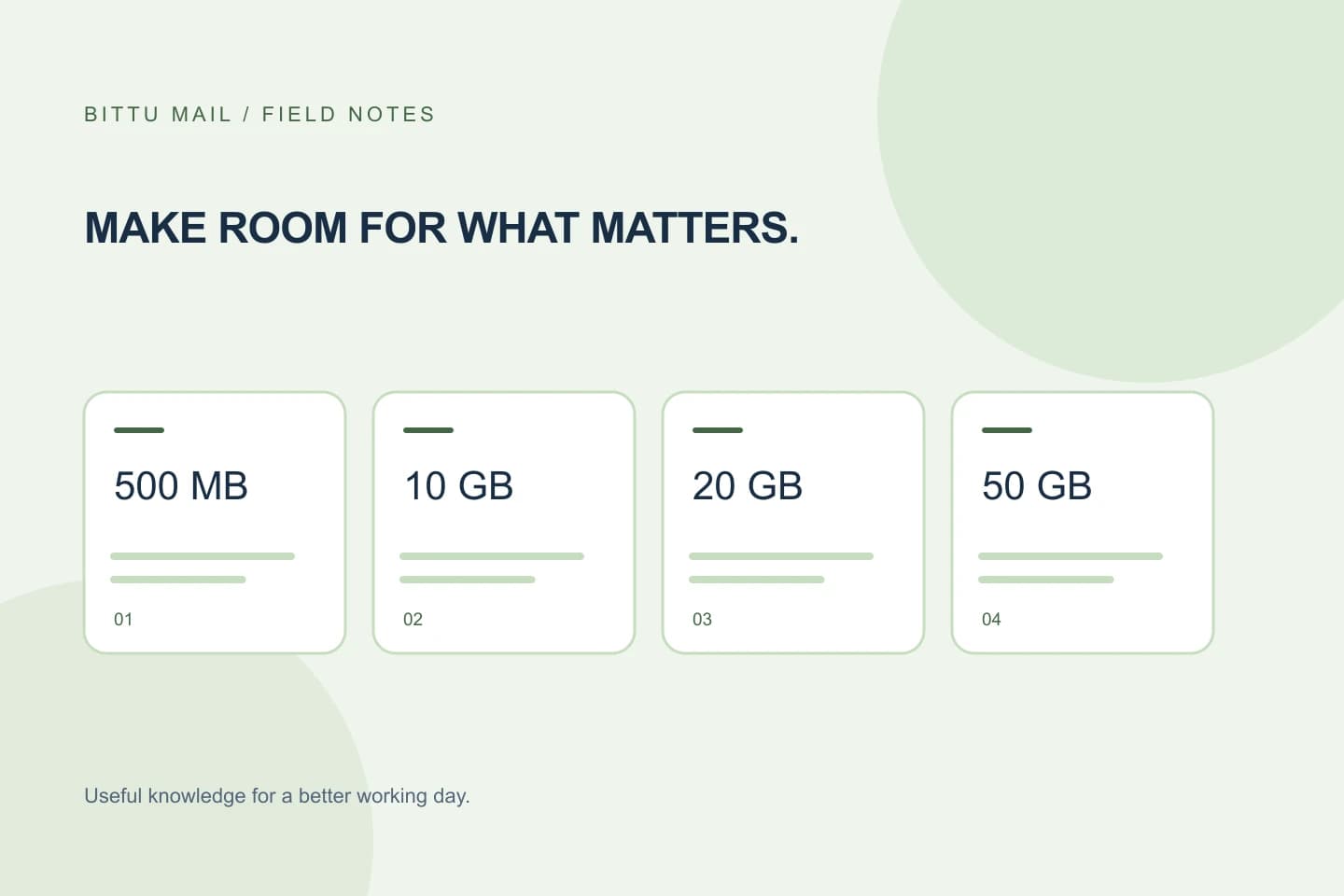
If storage remains a concern, review the plan information before making a decision. Free personal @bittumail.tech mailboxes start with 500 MB; Business Starter, Standard, and Premium provide 10, 20, and 50 GB per mailbox. These plan facts do not establish how much space a particular folder uses or whether a cleanup will resolve a limit.
Confirm any account or plan change
Check current availability and terms at /pricing or in authenticated checkout. Live prices, upfront term total, taxes, availability, and renewal terms must be confirmed there; they can change, so this article does not quote prices. If you choose to change a plan, complete the action through the authenticated account flow and wait for its confirmation.
Finally, revisit the account’s plan and storage information to make sure it reflects the change you intended. If the status is unclear, do not repeat a purchase or assume that a different quota is active. Use the account’s available support or account controls to clarify it.
About this guide
Prepared with AI assistance for the BITTU Mail editorial library. Check important details against your original messages and current account settings. Product access depends on your role, plan and provisioning state. Provider interfaces and requirements can change.
View current plans · Security information · Suggest a correction