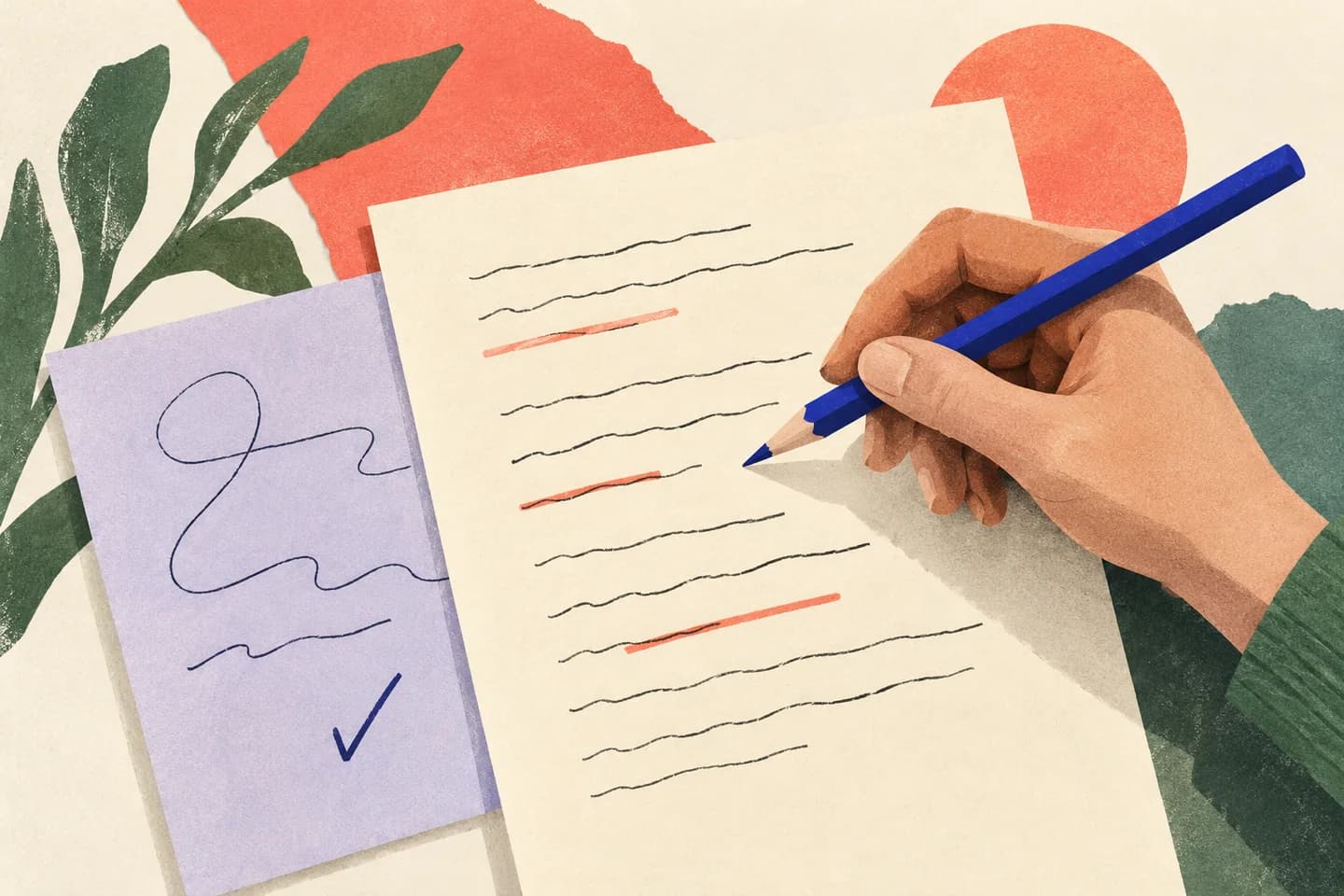
A proofreading request can quietly turn into a rewrite. An AI assistant may smooth a sentence by changing its emphasis, making a tentative plan sound firm, or replacing a phrase that matters to you. To keep your message yours, set a narrow editing boundary before you share it, then compare the result with the original. This approach works for a short note or a longer email: ask for spelling, punctuation and grammar corrections only, and check names, dates, commitments and tone before you send anything.
The useful bits
- Tell the assistant exactly which corrections are allowed and which changes are not.
- Keep the original so you can compare the draft sentence by sentence.
- Verify facts, tone, intent, recipients and any promises yourself before sending.
Decide what “proofread” means for this email
Before using AI, identify the task as mechanical correction, not editing for style. Spelling, punctuation, capitalization and grammar are within scope. Reordering paragraphs, replacing words for a different tone, adding context, shortening the message or making the request more persuasive are not.
This distinction matters when a sentence is deliberately cautious or informal. “We may be able to send it Friday” should not become “We will send it Friday.” Both can read smoothly, but they communicate different levels of commitment. If a phrase is unusual but intentional, tell the assistant to leave it alone.
Give a narrow instruction
Ask for corrections only, and explicitly prohibit rewriting. Request that the assistant return the corrected email without adding a greeting, sign-off, explanation or new information. You can also ask it to flag a sentence if it cannot correct it without changing meaning, rather than guessing what you intended.
If your email contains sensitive information, consider removing details that are not needed for proofreading. Never provide real passwords or one-time passcodes to an assistant. AI output can be wrong, so a precise prompt reduces unnecessary changes but does not replace your review.
Please proofread the email below for spelling, punctuation, capitalization and grammar only. Preserve my wording, tone, paragraph order and intent. Do not add, remove, summarize or rephrase content. Do not change names, dates, amounts, facts, requests or commitments. If a correction could change the meaning, leave that wording unchanged and flag it separately. Return the corrected email only.

[Paste email here]
Keep a clean original for comparison
Save or copy the original before sending it to an AI tool. If you are composing in BITTU Mail, you can keep the original text in a separate draft or document while working; available mail and AI assistance can depend on your plan and account provisioning. Do not assume an AI option is available on every account.
When the corrected text comes back, compare it against the saved original. A document comparison tool can make insertions and deletions easier to spot, but a side-by-side read also works. Check each changed sentence rather than relying on a general statement that the message was only proofread.
Review the changes that carry meaning
Start with facts that are easy to distort: people’s names, email addresses, dates, times, amounts, attachments and project details. Then check verbs and qualifiers. Words such as “might,” “planned,” “approved,” “only” and “not” can determine whether a sentence is accurate.
Next, ask whether the revised email still sounds like you and makes the same request. A change from “Could you send the file when you have a chance?” to “Please send the file today” is not a grammar correction; it adds urgency and a deadline. Restore the original wording if the assistant has shifted the tone or intent.
- Are every name, date, amount and other factual detail unchanged?
- Did any possibility become a promise, or any request become a demand?
- Are the original tone, emphasis, paragraph order and intended action intact?
- Did the assistant add or remove information, including an attachment reference?
A small example: preserve a tentative commitment
Suppose your draft says you are checking whether a file can be sent on Friday. The correction should fix an actual language error without turning that possibility into a confirmed delivery date. Compare the result with the original before copying it into the message you plan to send.
Original:
Hi [Name],
I checked the file and we may be able to send it Friday, if the last review are finished. I’ll confirm when I know more.

A suitable grammar correction:
Hi [Name],
I checked the file, and we may be able to send it Friday if the last review is finished. I’ll confirm when I know more.

Check: “may be able” remains tentative, and no new deadline or promise has appeared.
Confirm the final email before sending
Read the corrected message once from beginning to end, as if you were the recipient. Confirm that it says what you intend, not merely that the punctuation looks right. Check the recipient field and any attachment separately; proofreading the body does not verify either one.
If you cannot explain why a change is necessary, keep your original wording or ask for that specific correction to be explained without rewriting the message. Once you have accepted the changes, review the final composed email again. You can consider the proofreading complete when the language errors you meant to fix are addressed and the facts, tone and intended action still match your original.
About this guide
Prepared with AI assistance for the BITTU Mail editorial library. Check important details against your original messages and current account settings. Product access depends on your role, plan and provisioning state. Provider interfaces and requirements can change.
View current plans · Security information · Suggest a correction