A checkout can look familiar while still reflecting the wrong mailbox count, billing term, or amount due today. Before confirming a BITTU Mail purchase, pause on the current pricing or checkout screen and compare each important detail with what you intended to select. Treat the displayed terms—not an old note, estimate, or remembered price—as the source for the decision. This checklist walks through the plan, term, upfront total, taxes, availability, and renewal information, and explains what to do if any detail is unclear or does not match.
The useful bits
- Match the plan and mailbox quantity to your intended use before proceeding.
- Check the displayed term, upfront total, taxes, and renewal terms together.
- If availability or eligibility is unclear, stop and verify it in the current pricing or authenticated checkout flow.
Start with the plan and the quantity
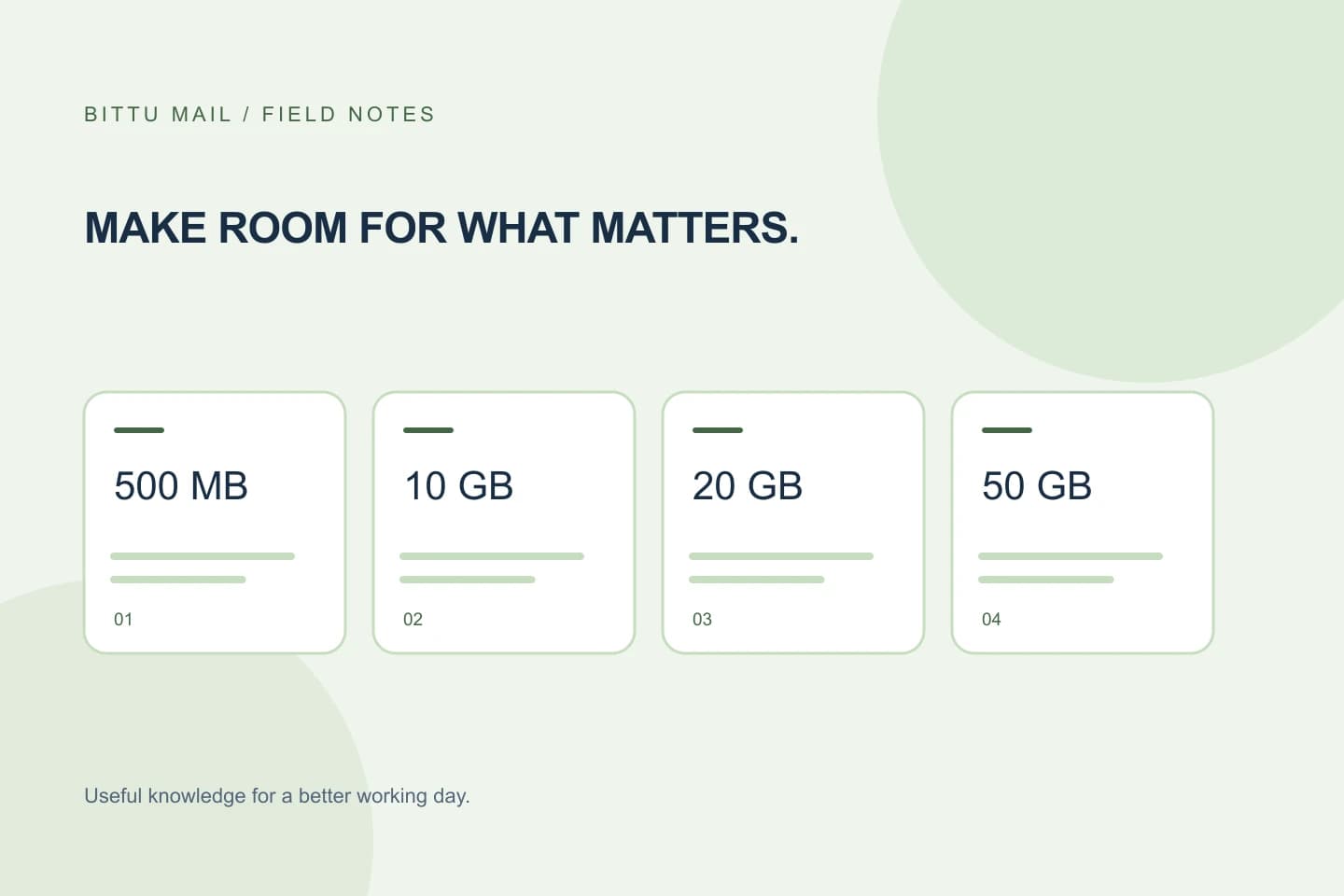
First confirm that the selected option is the plan you mean to buy: Business Starter, Standard, or Premium. Their published storage amounts are 10, 20, and 50 GB per mailbox, respectively. Check the amount against the needs of the people who will use the mailboxes, rather than assuming the plan name alone tells you how much storage the order includes.
Then review the mailbox quantity shown in the order. A mailbox alias is not automatically an independent mailbox or login, so do not count an alias as a separate mailbox unless the checkout explicitly lists it as one. If you are buying for a workspace, make sure the quantity matches the mailboxes you intend to provision. Available controls and what an account can do may depend on role, plan, and provisioning state.
- Plan name matches your intended choice.
- Per-mailbox storage suits the intended use.
- Displayed mailbox quantity matches the order you meant to place.
Read the billing term, not just the headline
Find the billing term attached to the selected plan and confirm that it is the period you intended. A plan name or a prominent price by itself is not enough to establish how long the purchase covers. Check that the term is visible alongside the offer you selected, and note any renewal information presented with it.
Prices, upfront term totals, taxes, availability, and renewal terms can change or depend on the current checkout. Check the live details at /pricing or in authenticated checkout; do not rely on a figure saved from an earlier visit. This article does not quote prices because the amount that applies to your order must be read from that current display.
You intend to buy Business Standard for several mailboxes. Before continuing, verify that the screen shows Standard, the intended quantity, and the billing term you chose—not a different term left selected from an earlier step.
Separate the amount due now from future terms
Locate the upfront total for the current checkout and check what it covers. Compare it with the selected plan, quantity, and term. If the screen presents a subtotal and taxes separately, review both and confirm the total reflects them. If the breakdown is absent, unclear, or inconsistent with the displayed order, do not guess at the final amount; return to the pricing details or pause and seek clarification through the appropriate BITTU Mail channel.
Distinguish the amount charged for this checkout from any renewal amount or timing described separately. Do not assume that a displayed recurring term means a particular payment arrangement. A one-time checkout does not, by itself, imply an automatic charge or mandate. Read the actual payment and renewal terms shown before you proceed, and stop if they do not answer the question you need resolved.
Check taxes and availability in the live flow
Taxes may affect the total, so inspect the tax line or the final amount shown for your transaction rather than calculating from an old estimate. If you cannot tell whether the displayed total includes taxes, treat that as an unanswered checkout detail. Confirm it in the current pricing information or authenticated checkout before confirming the purchase.
Availability and eligibility are also checked in the live flow. In particular, the 30-day Starter trial is limited to one trial claim per eligible domain, and eligibility and availability are server-checked. Do not assume that a domain qualifies because an offer is visible or because another domain received a trial. Rely on the result shown for the domain in the current flow.
- Confirm the tax treatment and amount shown for this order.
- Check current availability rather than relying on a previous offer.
- For the Starter trial, let the server-checked eligibility result determine whether it is available.
Make a final comparison before proceeding
Before you confirm, read the order once from top to bottom: plan, mailbox quantity, billing term, amount due now, taxes, availability, and renewal terms. Compare those details with the choice you intended to make. If any item is missing or conflicts with another part of the checkout, pause rather than treating a nearby price or plan label as confirmation.
A simple written note can make the comparison easier, especially when you are purchasing for a workspace. Record the intended plan, quantity, and term before opening checkout, then compare those choices with the displayed order. Avoid recording sensitive payment details in an informal note.
Intended: Business Starter; quantity: [number of mailboxes]; term: [chosen term].
Checkout shows: [plan]; [quantity]; [term].
Amount due now: [displayed total]; taxes: [displayed treatment].
Availability and renewal terms: [what the current screen states].
Proceed only when the details match and the total and terms are clear.
Confirm the result without assuming more than it shows
After proceeding, use the confirmation shown by the checkout or account to verify what was submitted or purchased. Compare its plan and order details with the information you reviewed. If the confirmation is absent, incomplete, or differs from what you expected, do not submit another order simply to test it; check the current account or checkout status and contact BITTU Mail support if you need help resolving the discrepancy.
A successful confirmation establishes only what that confirmation states. It does not establish that a mailbox, domain, or every workspace control is already provisioned or available to every role. Where account actions are needed, they go through the BITTU Mail account services, and available actions can depend on role, plan, and provisioning state. Keep the confirmation for reference and verify any later setup separately.
About this guide
Prepared with AI assistance for the BITTU Mail editorial library. Check important details against your original messages and current account settings. Product access depends on your role, plan and provisioning state. Provider interfaces and requirements can change.
View current plans · Security information · Suggest a correction