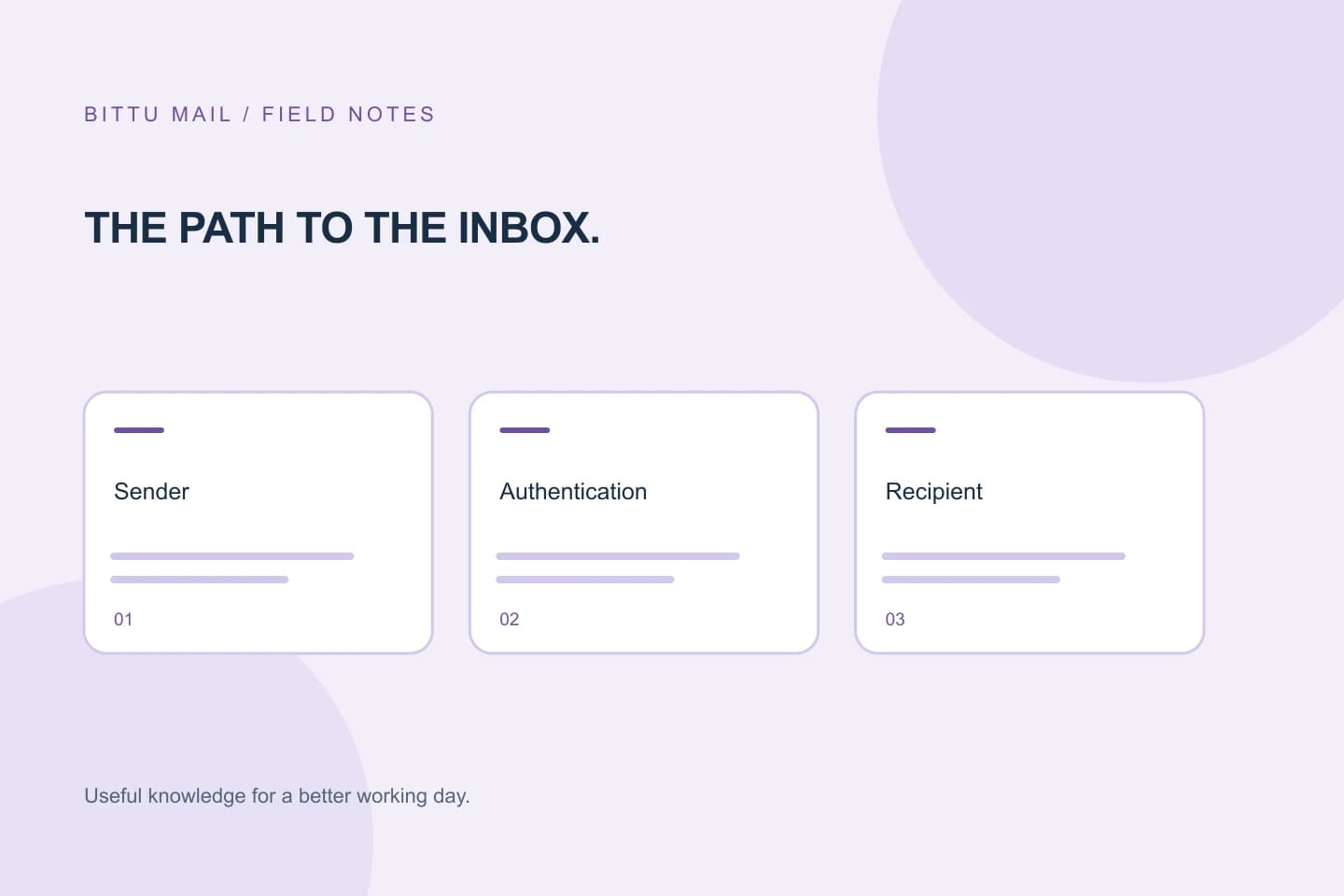
If an email cannot be delivered because the recipient’s domain has no working mail route, the problem is usually not the message itself. Email systems need a way to find a receiving mail server for the domain after the @ sign. If that route is missing, incorrect or unavailable, delivery can fail. A bounce message may point to a recipient-side routing issue, but it is worth checking the address and your own sending setup before drawing conclusions. This guide explains how to tell the difference, what you can reasonably try, and when the domain administrator needs to act.
The useful bits
- Mail needs a route to a receiving server for the recipient’s domain.
- Check the address and your sending setup before changing anything.
- Only an authorised administrator should inspect or change a domain’s routing.
What a mail route does
An email address has a mailbox name and a domain, separated by the @ sign. To deliver a message, sending systems need to locate a mail server that accepts incoming mail for that domain. The domain’s mail-routing information helps direct them to the right destination.
If that information is absent, points somewhere unsuitable, or cannot be reached, the sending system may be unable to hand over the message. This is different from a full inbox or an unread message: the delivery route itself may not lead to a usable receiving server. A routing failure does not, by itself, tell you whether the intended mailbox exists.
Read the failure notice before retrying
If you receive a bounce, keep it and read the explanation. Look for wording that suggests the recipient domain could not be found, has no mail server, or could not accept delivery. The precise wording varies by mail system, so treat it as a clue rather than a definitive diagnosis.
A temporary connection problem can look different from a route that is missing or misconfigured. If the notice says delivery may be retried, follow that guidance and avoid sending repeated copies in quick succession. If it says delivery failed, a retry from the same unchanged setup may simply fail again. Share the relevant error text with the recipient or their domain administrator, removing private message content where possible.
Separate recipient-side problems from sender fixes
Start with checks you control. Confirm the recipient address, especially the domain after the @ sign, and check for a stray space or a misspelled character. If you copied the address, compare it with a reliable source rather than assuming the saved contact is current.
Next, consider whether your own sending setup could be responsible. If you send through a mail app, check that you are using the provider’s current outgoing-server settings and that authentication is configured as required. For BITTU Mail, SMTP is mx1.bittuicloud.com on port 465 with SSL/TLS or port 587 with STARTTLS, with authentication and your full mailbox address as the username. Do not use port 25 for a mail app, and never accept a certificate warning.
If other recipients receive your messages but this one domain consistently fails with a domain-routing error, that points toward an issue for the recipient’s domain administrator to investigate. It is not proof: a bounce may have more than one possible cause.
A practical example
Suppose you send a message to a contact at a fictional domain and receive a notice saying there is no usable route for that recipient domain. Work through the checks in order rather than changing unrelated account settings.
Recipient: alex@example.com
Bounce detail: [paste the relevant delivery error]
Check: Confirm the spelling of example.com and the full address.
Then: Send a test only if the address is confirmed and the bounce suggests a retry may help.
If it still fails: Share the error with the domain administrator.
What the recipient’s administrator can inspect
A domain administrator may need to check that the domain’s incoming-mail routing is configured for the intended mail service and that the destination is current and available. These are domain-level settings, not ordinary mailbox preferences. A recipient who does not administer the domain should forward the error to someone authorised to manage it rather than attempting changes.
BITTU Mail does not offer public DNS diagnostics. An authorised workspace or domain administrator can inspect only domains they are authorised to manage in /workspace; the controls available depend on role, plan and provisioning state. Do not try to investigate or alter a domain you do not control.
Confirm whether delivery is working
After an authorised administrator has reviewed or corrected the domain’s routing, send a brief new message to the intended address and check for a delivery failure. Ask the recipient to confirm receipt through a separate, known communication channel if that is practical. A sent message alone does not confirm that it reached the inbox.
If the new message still bounces, preserve the latest error and report it to the recipient’s administrator or relevant mail provider. If the bounce instead identifies an address, authentication or sending-server problem, return to the sender-side checks. The goal is to match the next step to the failure described, not to make broad changes without evidence.
About this guide
Prepared with AI assistance for the BITTU Mail editorial library. Check important details against your original messages and current account settings. Product access depends on your role, plan and provisioning state. Provider interfaces and requirements can change.
View current plans · Security information · Suggest a correction