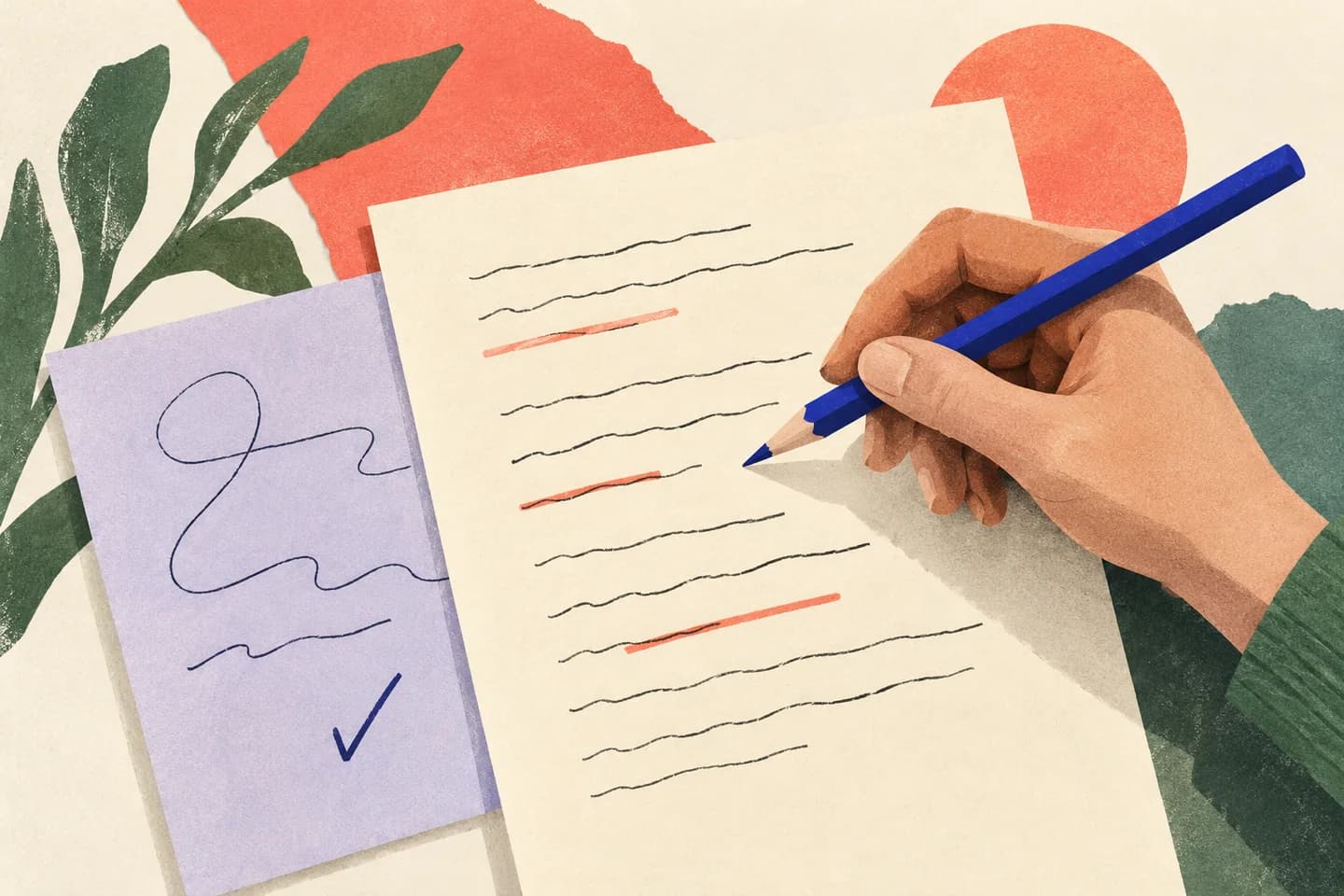
An email can sound inconsistent without actually contradicting itself. A sender may change a date, distinguish a draft from a final version, or describe two different conditions in the same message. AI can help you notice statements worth checking, but it cannot decide what the sender meant. Use it as a reading aid: identify the exact lines, compare their context in the original email, and clarify unresolved conflicts before you make a commitment or reply as though the meaning were certain.
The useful bits
- Ask AI to quote both potentially conflicting statements and explain the apparent mismatch.
- Check the original email, including dates, conditions, names, and nearby context.
- Ask the sender one neutral, specific question when the conflict remains unresolved.
Give the assistant a narrow job
Ask for possible contradictions within the message, not a verdict about the sender’s intent. A useful prompt tells the assistant to compare claims in the email, quote the relevant wording, explain why the claims may conflict, and flag uncertainty. Ask it not to treat different topics or conditional statements as contradictions.
For example, “The delivery is scheduled for Tuesday” and “We can’t ship before Wednesday” appear inconsistent if they refer to the same delivery under the same conditions. But a sentence about a Tuesday planning meeting may have nothing to do with shipping. Requiring quoted evidence makes the result easier to check.
Review this email for statements that appear to conflict with each other. For each possible conflict, quote both statements and explain briefly what seems inconsistent. Note if they could refer to different dates, items, conditions, or stages. Do not resolve the conflict or guess what the sender intended. If none is apparent, say so.

[Paste the email text here]
Protect the message before sharing it
Use only an AI feature available to your account; AI assistance can depend on plan and provisioning, so do not assume it is enabled for every mailbox. If you paste text into an assistant, consider whether it contains information you should not share there. Remove unrelated sensitive details and replace them with placeholders such as [client name] or [amount] when those details are not needed to compare the statements.
Never give an assistant a real password or one-time passcode. Keep enough context to preserve meaning: deleting words like “unless,” “tentative,” or “after approval” can turn a sensible message into an apparent contradiction.
Check every flagged pair in the original
Return to the actual email and locate both quoted statements. Confirm that the assistant copied them accurately and that they occur in the same message. Read the surrounding sentences, not just the isolated lines. Look for a changed subject, separate item, quoted earlier message, revised date, condition, estimate, or distinction between a proposal and a confirmed commitment.
Check names, dates, recipients, promises, and financial details especially carefully. AI can miss a qualification or connect statements that do not belong together. If the assistant quotes words that are not present, or overlooks wording that changes their meaning, discard that finding and work from the original.
Separate a real conflict from a possible one
A practical test is to ask whether both statements can be true at the same time, for the same subject, under the same conditions. If one says a meeting is on Monday and another says it is on Tuesday, but one refers to a review and the other to a launch, there may be no conflict. If both refer to the same meeting and neither is marked tentative or revised, the date needs clarification.
Classify findings as “likely consistent,” “unclear,” or “appears inconsistent” rather than forcing every pair into a yes-or-no answer. These labels describe your reading, not a proven intention. When the context does not settle the issue, preserve that uncertainty in your notes and in your reply.
Email wording: “The review call is Monday at [time]. We’ll send the final proposal after Tuesday’s approval meeting.”

Possible AI flag: Monday versus Tuesday.

Check: The dates refer to different events, so they do not conflict. No clarification is needed unless another sentence assigns a different date to the review call.
Ask about the smallest unresolved point
If a conflict remains, quote or briefly identify the two statements and ask which one to use. Avoid leading with “Your email contradicts itself”; that can sound accusatory and does not make the choice easier. A neutral question gives the sender room to explain a revision, condition, or mistake.
For example: “I may be reading this incorrectly: the message says [first statement], and later says [second statement]. Which date should I use for [specific item]?” If a decision depends on an amount, deadline, or promise, ask about that exact detail rather than asking the sender to clarify the whole email.
Subject: Confirming [specific detail]

Hi [Name],

I may be missing some context. The email says [first statement], and later says [second statement]. Could you confirm which applies to [item or decision]?

Thanks,
[Your name]
Confirm the issue is actually resolved
Before acting, compare the sender’s reply with the specific uncertainty you raised. A clear answer should identify the relevant date, amount, version, or condition. If the response introduces another ambiguity, ask one follow-up question and summarize the agreed detail in your reply. Keep the original message available so you can verify the wording rather than relying on an AI summary.
A quick final check: Did you verify both statements in the original? Did you account for conditions and context? Did the sender answer the precise question? If any answer is no, treat the point as unresolved rather than assuming the interpretation that is most convenient.
About this guide
Prepared with AI assistance for the BITTU Mail editorial library. Check important details against your original messages and current account settings. Product access depends on your role, plan and provisioning state. Provider interfaces and requirements can change.
View current plans · Security information · Suggest a correction