You finish most of an email on your laptop, close the lid, and expect to continue on your phone. But the words you can still see in a compose window are not necessarily a draft you can retrieve elsewhere. The important distinction is whether the message has been saved to the mailbox, rather than merely remaining on screen. Before changing devices, look for the draft in the mailbox itself and confirm that it contains the text you need. If it is missing, pause before trying fixes that could discard or duplicate your work.
The useful bits
- Text visible in an open compose window is not proof that a mailbox draft exists.
- Find and open the message in the mailbox before switching devices.
- If the draft is missing, preserve the text and try one cautious check at a time.
A compose window is a workspace, not a receipt
While you are writing, the message may exist only in the compose window you currently have open. Seeing your subject and body there confirms that the text is on that screen; it does not, by itself, confirm that the mailbox has a saved copy. If the browser reloads, the device loses its connection, or the window is closed, you may not be able to recover text that was never saved.
A saved draft is a message you can find again as a draft in the mailbox. To distinguish the two, leave the message open while you check the mailbox’s draft area or folder. If the message is listed there and opens with the expected content, you have stronger evidence that the mailbox holds it. Do not treat a still-visible compose window as the only confirmation.
Check the mailbox before you leave the device
Before switching devices, allow the compose window to finish any visible saving activity, if the interface shows one. Then locate the message among the mailbox’s drafts and open it. Check the recipient fields, subject, and the beginning and end of the body; these are practical ways to catch an incomplete copy. If you made a recent edit, confirm that edit is present too.
If you cannot find the draft, keep the original compose window open. Copy the text somewhere safe that you control before refreshing, signing out, closing the tab, or attempting a repair. Be especially careful with sensitive content when choosing a temporary place to keep a copy. Avoid sending the message just to test whether it has been saved.
Make sure both devices are showing the same mailbox
On the second device, sign in to the mailbox you used to write the message and look for the draft there. A different signed-in account can make a saved message appear to have vanished. Check the full mailbox address rather than relying only on a display name or profile image. If you use more than one account, verify which one is active before drawing conclusions.
Open the draft on the second device and compare its contents with the version you confirmed on the first. If the latest sentence or correction is absent, do not assume the two screens are synchronized. Return to the original device, preserve the newer text, and avoid editing both copies at once until you know which version you intend to keep.
Before leaving the laptop:
1. Keep the compose window open.
2. Find the message in the mailbox’s drafts and open it.
3. Confirm the recipient, subject, and latest edits.
4. On the phone, verify the same mailbox address and open that draft.
5. Continue only if the expected text is present.
If the draft is missing, narrow the problem
Start with low-risk checks: verify the signed-in mailbox, look in the drafts area, and use mailbox search for a distinctive word from the subject or body. Search results and folder organization can help you find a message, but they do not prove that unsaved text has been stored. If the draft appears in search, open it and inspect the content before continuing.
If it remains missing, preserve the text from the original window and make only one change at a time. For example, check the mailbox on the original device again before deciding whether to reload or sign out. Those actions can remove the only visible copy if it has not been saved. Avoid repeatedly changing settings or deleting account data while the state of the message is uncertain.
Be cautious with mail-app troubleshooting
If you are using a separate mail app rather than BITTU Mail in a browser, a draft visible in that app may not yet be available in the mailbox on another device. First check the mailbox directly, if you can, and preserve any unsaved text. App-specific behavior can vary, so do not assume that a draft shown on one device has reached the mailbox.
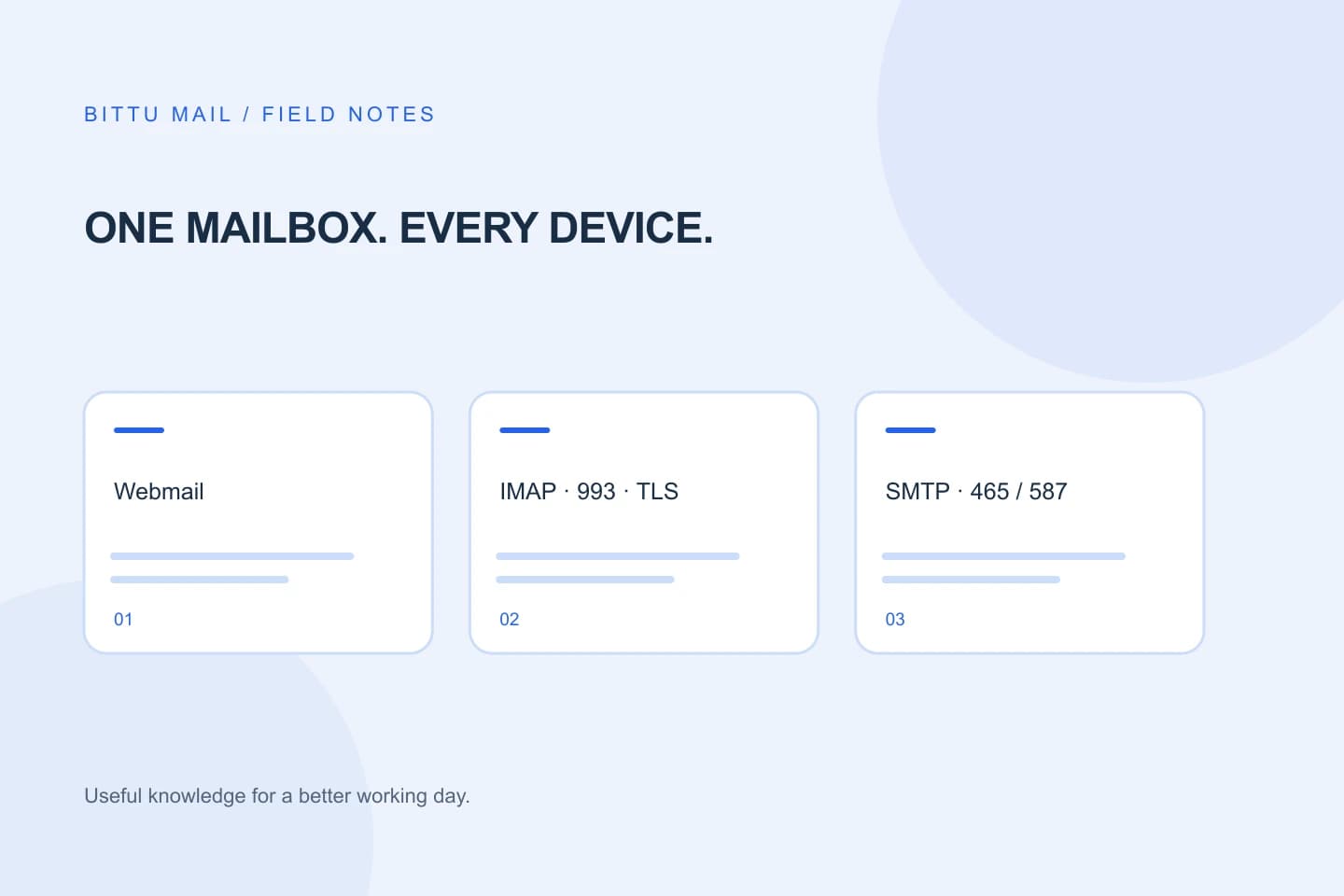
If you need to check connection settings, the published IMAP server is mx1.bittuicloud.com on port 993 with SSL/TLS. SMTP uses that host on port 465 with SSL/TLS or port 587 with STARTTLS and authentication; the full mailbox address is the username. Do not use port 25, and never accept a certificate warning. If a setting is unclear, stop rather than guessing or making several changes that could complicate diagnosis.
Know what counts as confirmation
A useful confirmation is simple: the draft is visible in the mailbox, opens successfully, and contains the version you meant to save. Seeing text in a compose window, remembering that you typed it, or finding an older version is not the same check. After switching devices, inspect the actual draft there before adding more edits.
If you cannot confirm the message, keep the original text intact and seek help through the appropriate account support route rather than risking it with repeated resets. BITTU Mail sign-in and account actions go through mail.bittuicloud.com. The safest next step is the one that preserves your only copy while you establish whether a saved draft exists.
About this guide
Prepared with AI assistance for the BITTU Mail editorial library. Check important details against your original messages and current account settings. Product access depends on your role, plan and provisioning state. Provider interfaces and requirements can change.
View current plans · Security information · Suggest a correction