A practical IMAP and SMTP setup guide for phones and desktop mail apps.
Start with the right identity
Use your full email address as the username: for example, yourname@bittumail.tech or yourname@yourcompany.com. Sign in to the webmail first to confirm the account is active. A domain administrator must finish DNS and mailbox setup before a new company address can receive external mail.
Incoming mail: keep everything in sync
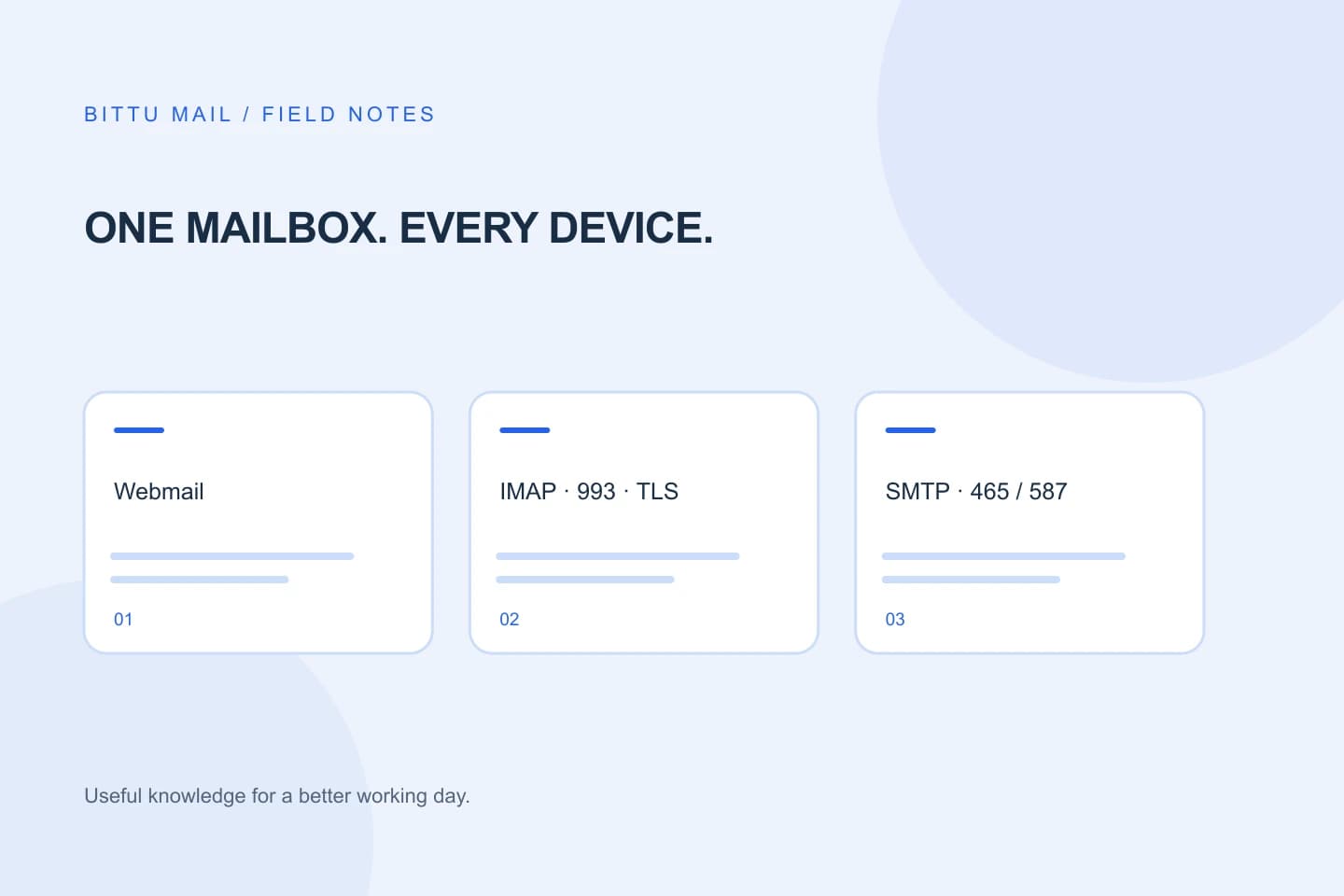
Choose IMAP in Apple Mail, Thunderbird, Outlook or the Android Gmail app. The incoming server is mx1.bittuicloud.com, port 993, with SSL/TLS enabled. Use your full email address and mailbox password. IMAP keeps folders and messages synchronized between apps. POP3 is available on port 995 with SSL/TLS if you specifically need a download-oriented setup.
Outgoing mail: authentication matters
Set the SMTP server to mx1.bittuicloud.com. Choose port 465 with SSL/TLS, or 587 with STARTTLS, and enable authentication with the same full mailbox address. Do not choose an unencrypted connection or accept a certificate warning. A different sender address needs an authorized alias or mailbox; merely editing an app's From field does not grant permission.
If a connection fails
Check for spaces in the username, the selected encryption mode and an outdated saved password. Try the webmail from the same network. If webmail works but the app does not, capture the app's exact error without revealing your password. Add that error and your app version to a support ticket. BITTU support will never need your password or OTP.
A useful final check
Send a message to an address you control, reply to it and confirm the reply appears in webmail and your app. Check the Sent folder location if the app creates a duplicate. A successful send means the server accepted the message; the receiving provider still decides where to place it.
About this guide
A practical guide from BITTU Mail Editorial. Product access depends on your role, plan and provisioning state. Provider interfaces and requirements can change.
View current plans · Security information · Suggest a correction
